1. In Eudora, go
to the Tools menu and select OPTIONS.

2. In the Options window, you will see several
icons on the left. Select GETTING STARTED.

3. In the REAL NAME field, type your name the way
you would like people to see it when they get email from
you.
For example, John Doe.

4. In the RETURN ADDRESS field, enter your email
address. For example: eudora-user@eudoramail.com

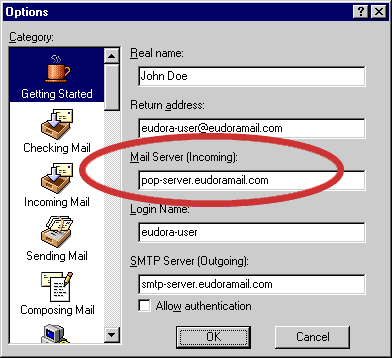
5. In the MAIL SERVER (INCOMING) field, enter
the POP or mail server. This will be
mail.yourdomain. For example:
mail.joescafe.com
6. In the LOGIN NAME field, enter the login
name for your mail account. For example: eudora-user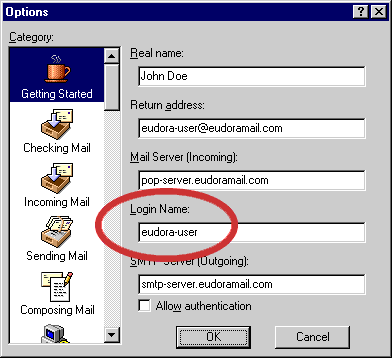
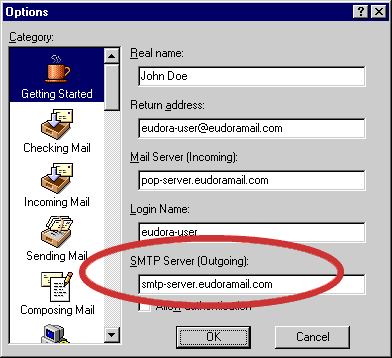
7. In the SMTP SERVER (OUTGOING) field, enter
the SMTP or Outgoing mail server that was given to you
by your Internet Service Provider. For example:
smtp-sever.eudoramail.com.
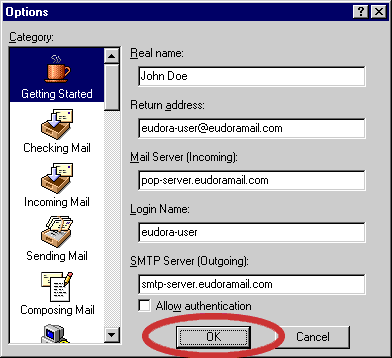
8. Click OK. This completes the basic setup -
you should now be able to send and receive email in
Eudora.
|
